
How do I get subtitles from a video without uploading it? Import the video into Whisper Notes. It transcribes the speech on your Mac or iPhone, and Export As → SRT saves a subtitle file you can load into any player or video editor.
What can I export?
| iPhone | Mac | |
|---|---|---|
| Import a video | Yes | Yes |
| SRT | Yes | Yes |
| VTT | After speaker detection | Yes |
| Speaker names in the subtitles | After speaker detection | After speaker detection |
| Watch the video with its subtitles and fix lines | No | Yes |
| Burn subtitles into the video | No | No |
Green means available, amber means not available or limited. Mac means both the Mac App Store version and the Mac app from our website.
What do the subtitles look like?
Each subtitle follows the usual rules for readable captions:
- at most 42 characters per line (about 21 in Chinese, Japanese and Korean)
- at most two lines
- at most 7 seconds on screen
Once speakers are identified, each SRT subtitle starts with the speaker's name, and VTT carries it as a voice tag:
1
00:00:01,200 --> 00:00:04,800
Anna: Thanks for joining. Today we're
looking at the new pricing page.

2
00:00:05,100 --> 00:00:07,900
Ben: Should the annual plan go first?
How long does a video take?
Parakeet, the built-in model, runs about 76 times faster than real time on a MacBook Air (M5): an hour of video takes about 50 seconds of model time. For the most accurate model in your language, see Which Model for Your Language?
How to make subtitles on Mac
- Drag the video onto the Whisper Notes window, or click the import button and choose it in Import Audio or Video. MP4, MOV and M4V work; if macOS can't open an MKV or WebM file, convert it to MP4 first.
- When it's done, open the note. The video plays next to its subtitles: click a line to jump there, double-click it to fix a word.
- Choose Export As → SRT, or VTT.
Show Subtitles puts them over the video. In the Mac app from our website, you can also set them to Small, Medium or Large and drag them up or down to keep clear of captions already in the picture.
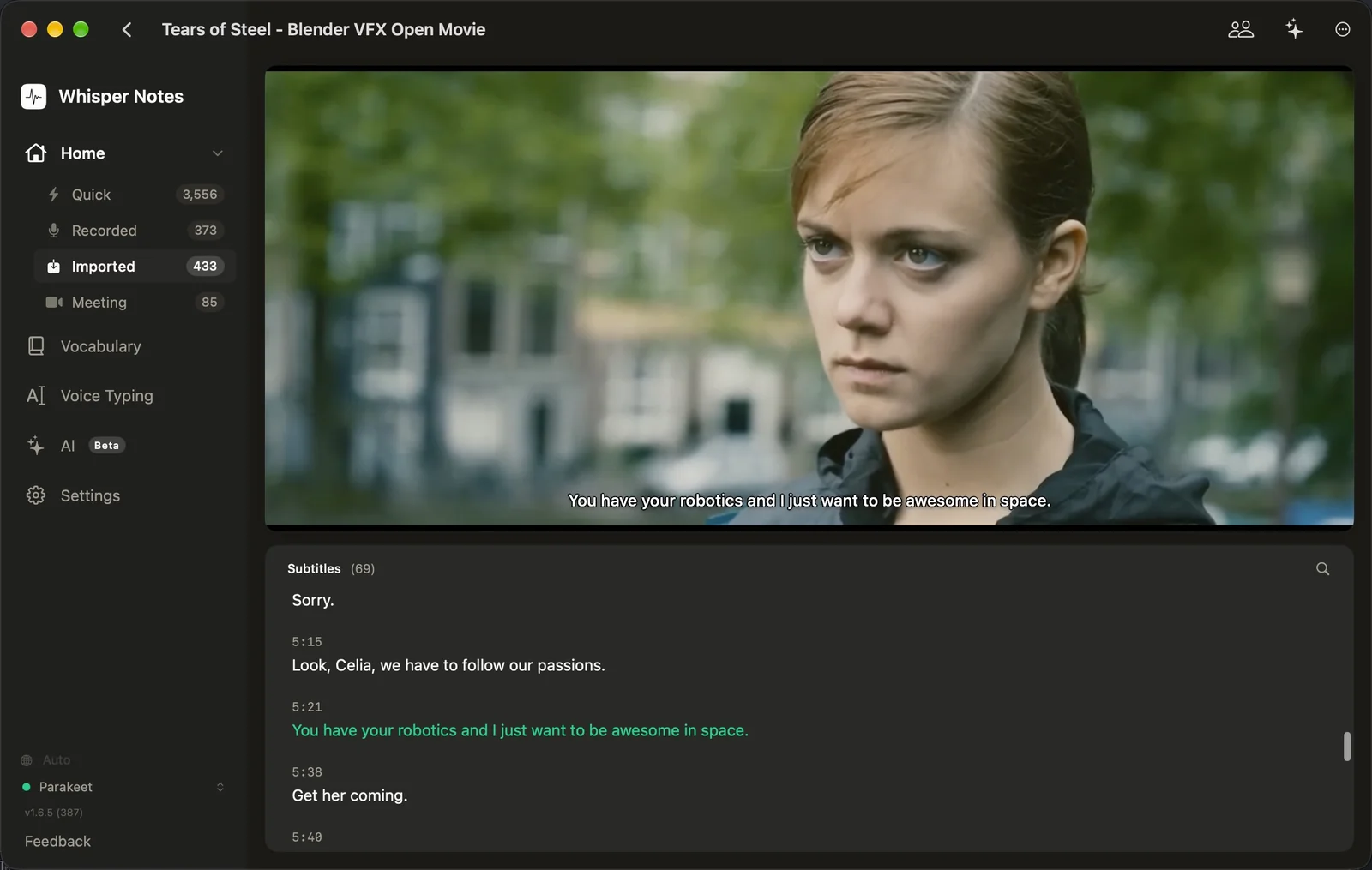
Editing subtitles while the video plays in the Mac app. Footage: Tears of Steel (CC BY 3.0) © Blender Foundation | mango.blender.org
How to make subtitles on iPhone
- Tap the folder button next to the record button and choose the video.
- When it's done, tap ⋯ on the note → Share → Export SRT.
For VTT, tap ⋯ → Detect Speakers first; Export VTT File (Speakers) then appears in the same menu.
Burning subtitles into the picture takes a video editor
Whisper Notes writes subtitle files and leaves the video untouched. VLC and IINA load an .srt with the same name as the video automatically. To burn the subtitles into the picture, open the video and the .srt in a video editor such as HandBrake (free), Final Cut Pro or DaVinci Resolve.
Frequently Asked Questions
Is my video uploaded anywhere?
No. Whisper Notes transcribes the video on your Mac or iPhone and writes the subtitle file there. The internet is only used to download models.
Can Whisper Notes burn subtitles into the video?
No. It exports SRT and VTT files. To burn them in, use a video editor such as HandBrake, which is free.
Which languages can it subtitle?
The same languages it transcribes. Supported Languages lists them for each model.
Is it free?
On iPhone, Whisper Notes is $7.99 once, and the same purchase covers the Mac App Store version. The Mac app from our website is free for 5,000 words a week, then $14 once.
 Download for iOS