
Where does Whisper Notes keep my transcripts? On your iPhone or Mac, inside the app. It can also write them as plain files into a folder you pick: a .txt of every new transcript on iPhone, a Markdown file next to every recording on Mac. There is no Whisper Notes cloud and no account, and the app doesn't sync.
| iPhone | Mac | |
|---|---|---|
| Automatic copy | A .txt of each new transcript, plus the audio if you want it. Off until you turn it on | A Markdown file next to each recording's audio |
| Where | A folder you choose in Files: iCloud Drive, On My iPhone or another location | The library folder: ~/Documents/WhisperNotes in the Mac app from our website; any folder through Settings › Storage |
| Later edits in the app | Not copied | Not written to the file |
| Note deleted in the app | Exported files stay | The note's audio and .md go with it once it leaves the Recycle Bin |
| Speaker names | Only in files you export yourself | Only in files you export yourself |
Green: the file outlives the note. Amber: it doesn't.
iPhone: Auto-export Transcripts
Open Settings › Data Management, turn on Auto-export Transcripts and tap Choose Folder…. Any place the Files app shows works: a folder in iCloud Drive, On My iPhone, or a provider such as Dropbox if its app is installed. From then on, every transcript Whisper Notes finishes is saved there as a .txt named after the note. With Include Audio on, the recording sits next to it under the same name.
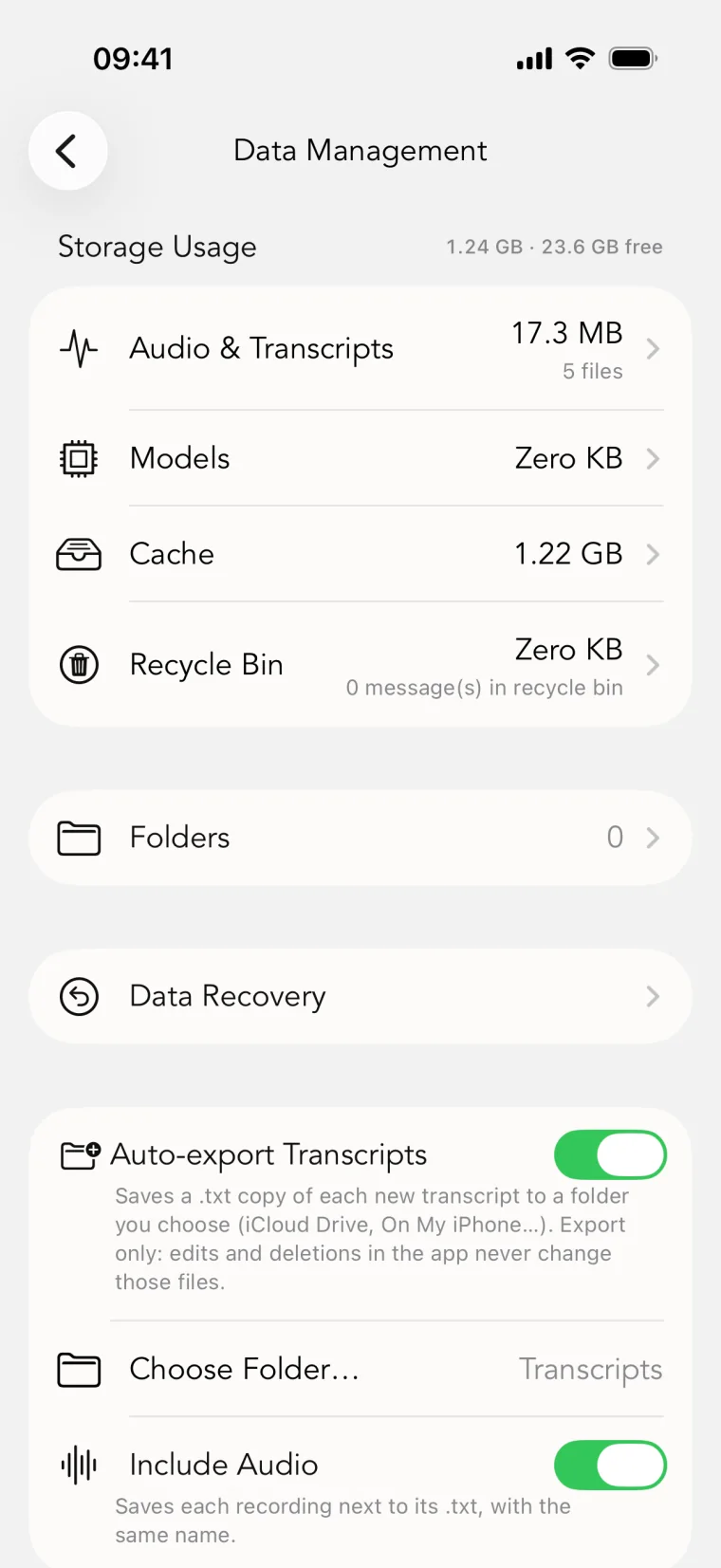
Settings › Data Management on iPhone: Auto-export Transcripts, the folder, and Include Audio
- It only adds files. Editing or deleting a note in the app never touches the folder. Re-transcribing a note with a different result adds a second file instead of replacing the first.
- It needs the folder to be reachable. If it isn't, the copy waits, the setting shows Pending, and Whisper Notes tries again the next time you open it.
- It is the plain transcript. No speaker names, no times. For those, export the note yourself: ⋯ → Share → Export Markdown or Export TXT File (Speakers), then Save to Files. For many notes at once, press and hold one, tap Select All, then ⋯ → Export Files… and pick a format: one file per note.
Notes themselves live only on the iPhone, and deleting the app deletes them. The exported files stay where you put them.
iPhone: Shortcuts
For a copy in a fixed place after every recording, chain three actions in the Shortcuts app: Stop Recording and Get Transcription, then Get Last Transcription as File (a .txt named after the recording; turn on Include Timestamps for a time on each line), then Shortcuts' own Save File with the folder you want. Get Last Recording hands over the audio the same way.
Mac: a Markdown file next to every recording
Both Mac versions save the transcript of every recording and imported file as a .md file beside its audio, in the app's library folder. The file starts with YAML front matter, which Obsidian reads as properties:
---
created: 2026-11-05 14:02
source: imported
duration: "41:07"
audio: Interview 3.m4a
tags: [transcript]
---

# 2026-11-05 14:02 Import

Thanks for making time today. Let's start with how you…
Below the text, a collapsed Timestamped Transcript section holds the same words with their times. A meeting recording gets its own folder, with the audio tracks and a transcript.md.
Settings › Storage shows the library folder and opens it in Finder; Change… picks another one. In the Mac app from our website it starts in ~/Documents/WhisperNotes. The Mac App Store version starts inside its own app container, and Settings › Storage warns that macOS deletes that container with the app; pick another folder there.
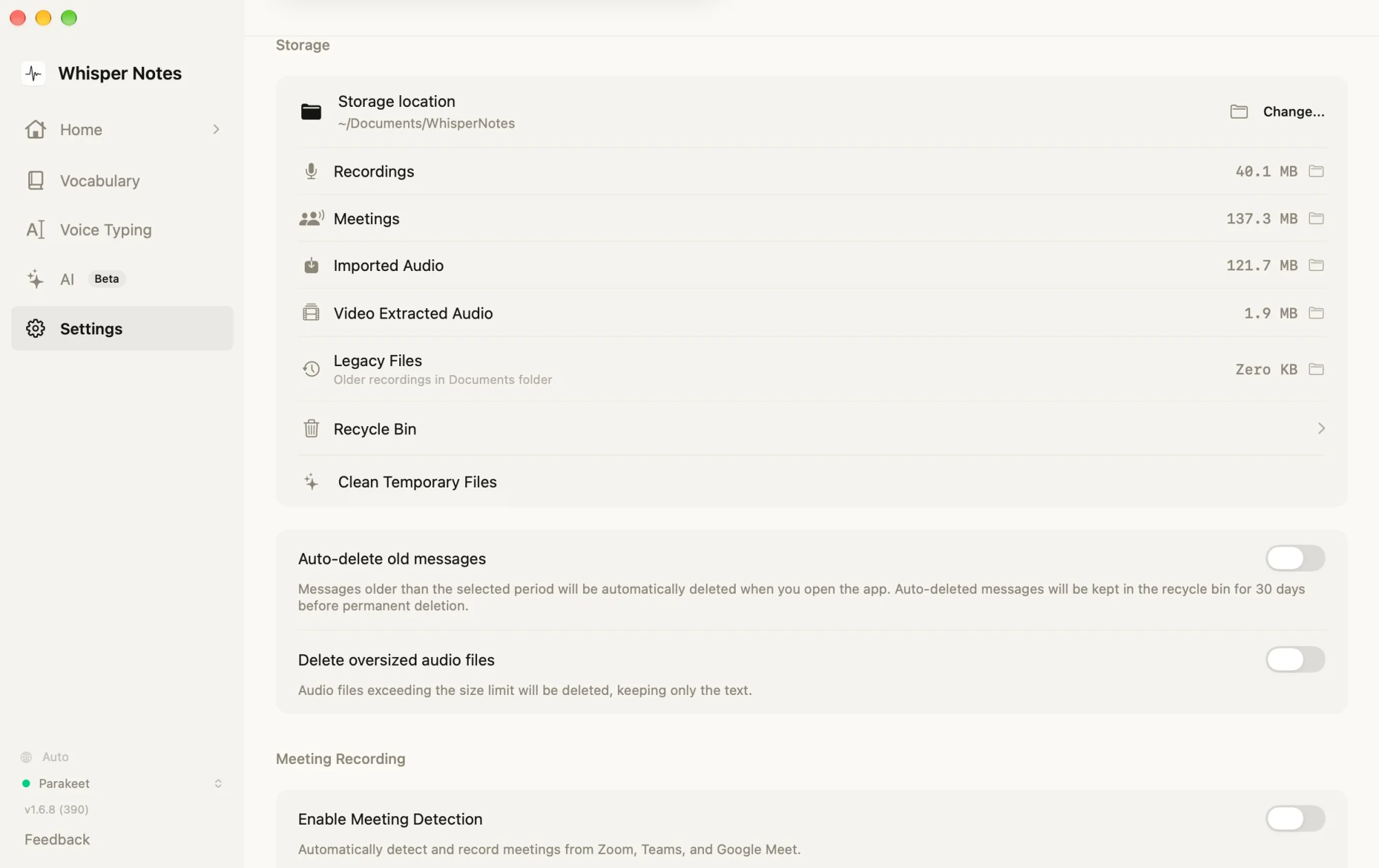
Settings › Storage in the Mac app from our website: the library folder and Change…
The .md is written once, when the transcription finishes. Edits you make later stay in the app, and editing the file doesn't change the note. For an up-to-date copy with speaker names and the time of each turn, use ⋯ → Export As → Markdown.
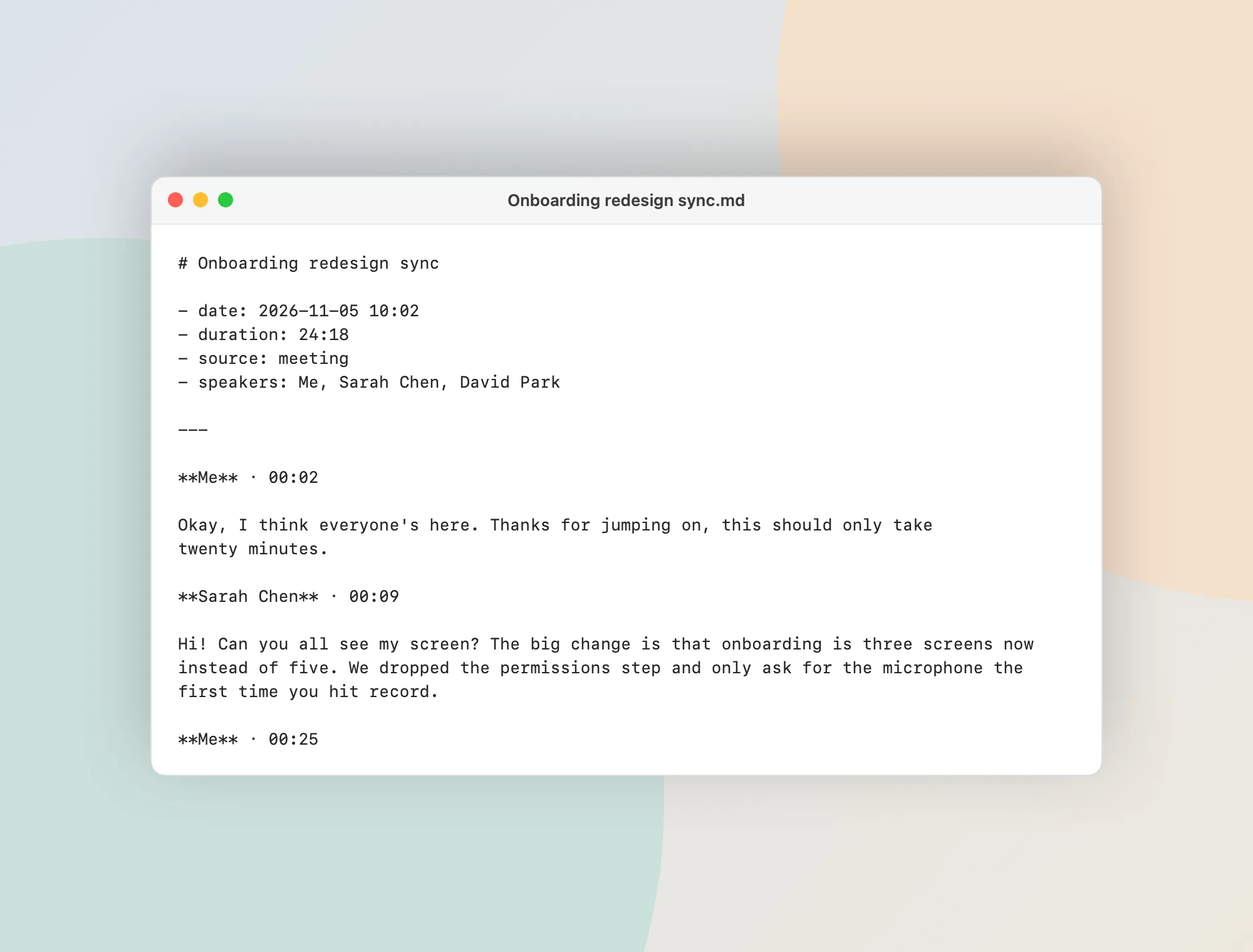
Export As → Markdown on the Mac: a short header, then every turn with its speaker and time
In the Mac app from our website, the command line exports in bulk: wn export --format md --speakers --audio --output-dir ~/Transcripts writes one file per note, with the audio beside it, and never overwrites. It needs Local CLI & MCP on in Settings › Integrations (CLI & MCP Server).
Obsidian
- Mac: point the library folder at a folder inside your vault (Settings › Storage › Change…). From then on, each transcript shows up in Obsidian as a note tagged
transcript, with created, source and duration as properties, and its audio next to it; Obsidian plays common audio formats such as M4A, MP3 and WAV. - iPhone: save Markdown exports into the vault's folder in Files. Auto-export writes .txt files, and Obsidian doesn't open .txt without a community plugin.
What it doesn't do
- No sync between iPhone and Mac. The two apps keep separate notes. If the export folder is in iCloud Drive or Dropbox, that service copies the files to your other devices under your own account; with Include Audio on, you can drop the recording into the Mac app from there.
- No reading back. The app doesn't watch the folder or import changes from it.
- No connections to note services. There is no Notion or Evernote integration; anything that reads a folder of text or Markdown files works.
Frequently Asked Questions
Does Whisper Notes store my transcripts in the cloud?
No. Transcription happens on your iPhone or Mac, and your recordings and transcripts never leave your device; we can't see them. A copy goes to iCloud Drive or Dropbox only if you choose a folder there, and then Apple or Dropbox stores it under your account.
Can I save transcripts to my own iCloud Drive or Dropbox?
On iPhone, yes: Settings › Data Management › Auto-export Transcripts writes a .txt of every new transcript, optionally with the audio, to the folder you choose. On Mac, move the library folder in Settings › Storage, or export notes with Export As.
Does Whisper Notes sync between iPhone and Mac?
No. There is no account and no sync service. Files exported into iCloud Drive on the iPhone appear on your Mac through iCloud, as files, not as notes in the Mac app.
Can transcripts go straight into Obsidian?
On Mac, yes: put the library folder inside your vault and every transcript arrives as a Markdown note with properties and its audio. On iPhone, save Markdown exports into the vault; auto-export writes .txt files, which Obsidian doesn't open by default.
 Download for iOS