
How do I transcribe an interview? Record it in Whisper Notes on your iPhone or Mac, or import the recording you already have. The app writes the transcript on the device, tells the speakers apart when you ask it to, and exports the transcript with names and times. The audio and the transcript stay on your iPhone or Mac.
- On a Mac: record a Zoom, Teams or Google Meet interview with both sides, or drop in the files you already have; nothing is uploaded.
- Speakers: up to 8 per recording, and you choose what each one is called.
- Times: Markdown, SRT and VTT exports carry the start time of every turn.
- Languages: English and 24 other European languages with the built-in Parakeet model, about 100 with Whisper. Speaker labels work in all of them, because they follow voices, not words.
Record the interview
In person, on iPhone. Put the phone between you and record, up to 24 hours. In English, German and the other Parakeet languages, an iPhone 12 or later shows the words on screen while you talk, so you can see that both voices are coming through.
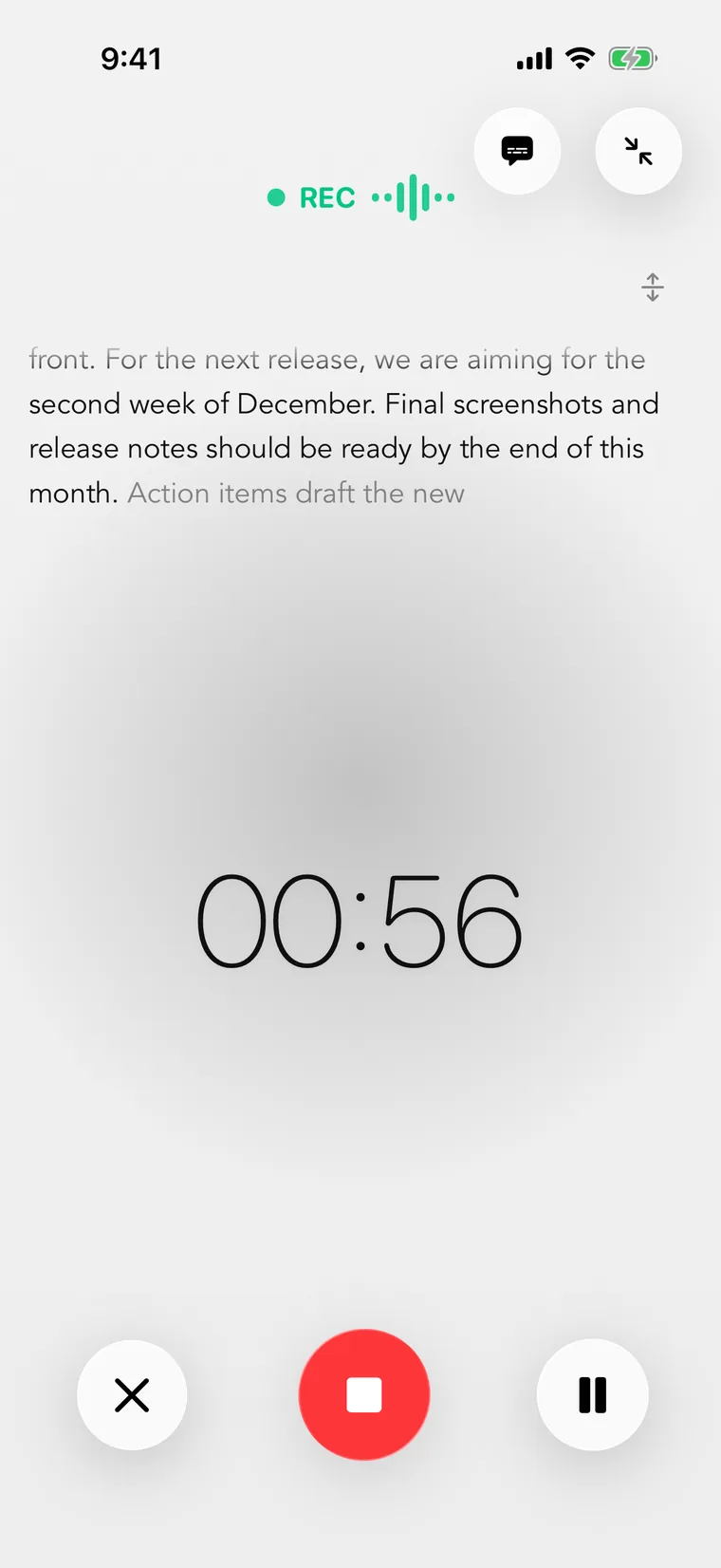
Recording on iPhone: the words appear while you talk
Over Zoom, Teams or Google Meet, on Mac. Choose Start Meeting Recording in the menu bar: it records your microphone and the call's sound together. When you stop, your side is labeled Me and the call's side Others; Identify Speakers then tells the other voices apart. Setup and the macOS permission: Record System Audio on Mac.
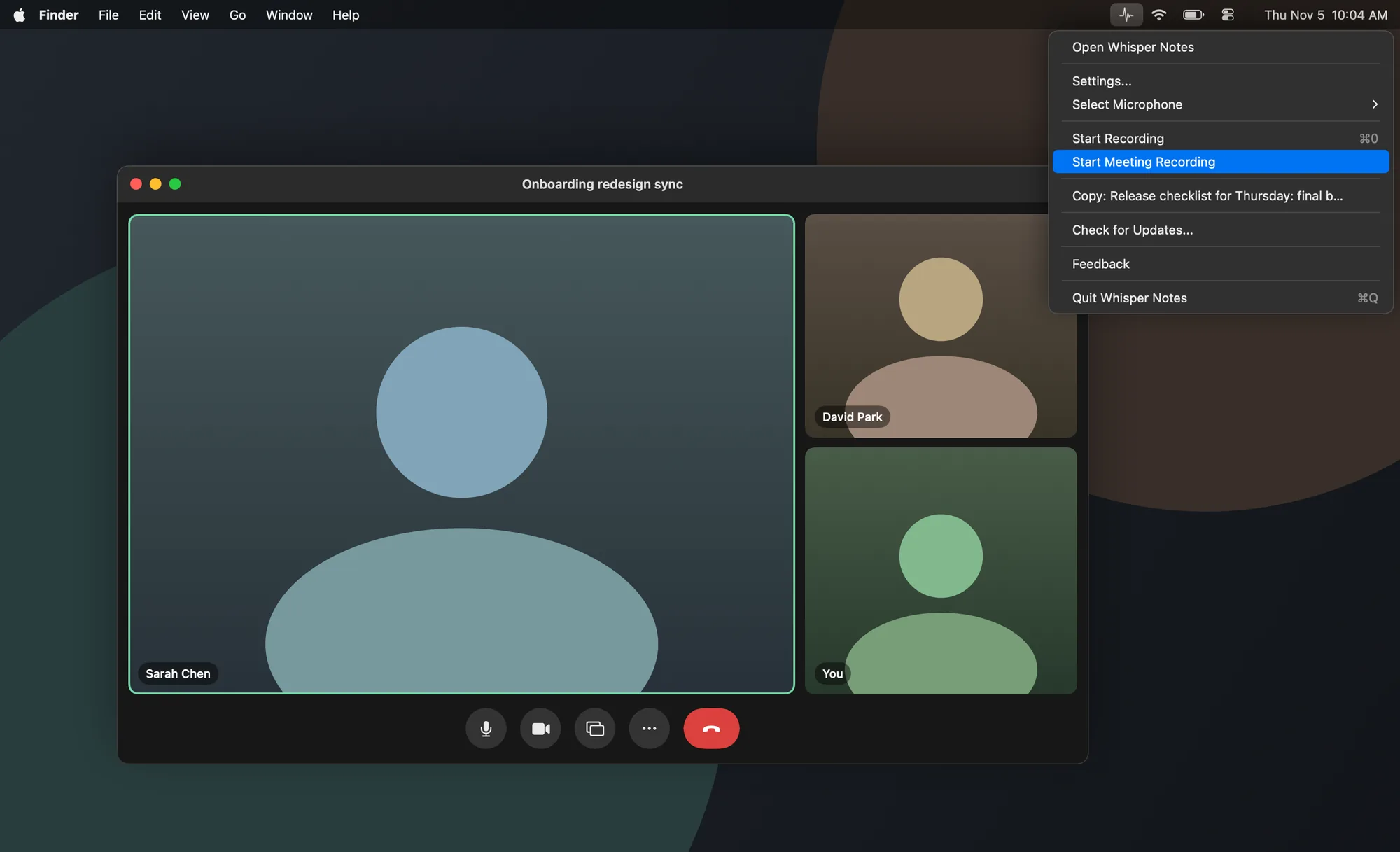
A video interview on the Mac: Start Meeting Recording in the menu bar
Already recorded. Drop the files on the Mac window, or share them to Whisper Notes on iPhone from Voice Memos or Files. A batch of interviews is transcribed one after another.
Ask for consent before you press record, and say where the recording will be kept. A phone call pauses an iPhone recording, so the iPhone can't record a phone interview. On a Mac, Start Meeting Recording records a video or voice call you take in a Mac app such as Zoom, Teams or Google Meet.
Label the speakers
Open the transcript and click Identify Speakers on Mac, or tap ⋯ → Detect Speakers on iPhone. The speaker model is an 89 MB download the first time; after that, labeling runs on the device with no connection. On iPhone, keep Whisper Notes open until it finishes.
The first pass counts the voices itself. In our benchmark on 122 public recordings it got the count right in 80% of them. When you know how many people spoke, run it again with that number: Re-run Speaker Detection on iPhone (1 to 8 speakers) or Re-run Speaker Identification on Mac (2 to 8). On Mac, Not right? above the transcript opens the same menu. What to pick depends on how the interview was recorded:
- In person, or an imported file: every voice is counted, yours included. For a one-on-one, pick 2.
- On a Mac with Start Meeting Recording: your side is already Me, and the menu counts only the other side, from 2 to 8 remote speakers. For a one-on-one, leave it on Auto-detect remote speakers, and if it splits your guest into two labels, give both the same name (below). With two guests on the call, pick 2 remote speakers.
Set the number before you rename anyone: running it again resets names and corrections (the app asks first).
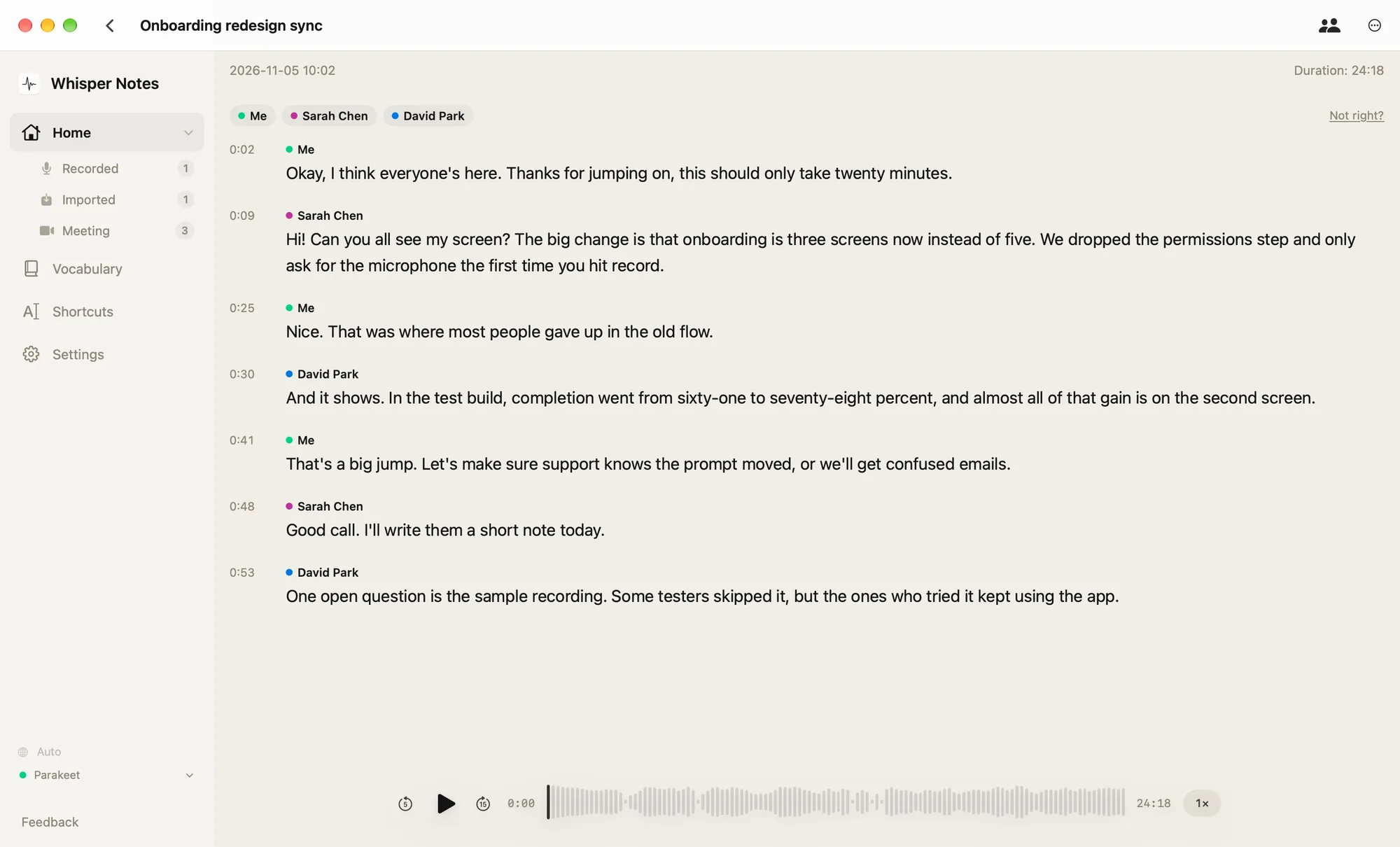
Speaker view on the Mac: each turn with its time and speaker, the recording below it
Labeling needs the recording itself. A note whose audio you removed with Delete Audio on iPhone keeps its text but can't be labeled again. With more than 8 voices, a large focus group for example, some people end up sharing a label.
Name the speakers and fix turns
Labels start as Speaker 1 and Speaker 2. Rename a label once, and every paragraph and every later export uses the new name. A role or a participant code, such as Interviewer and P07, keeps real names out of the transcript. Names spoken during the conversation are part of the text: edit them where they appear (double-tap the paragraph on iPhone, ⋯ → Edit on Mac).
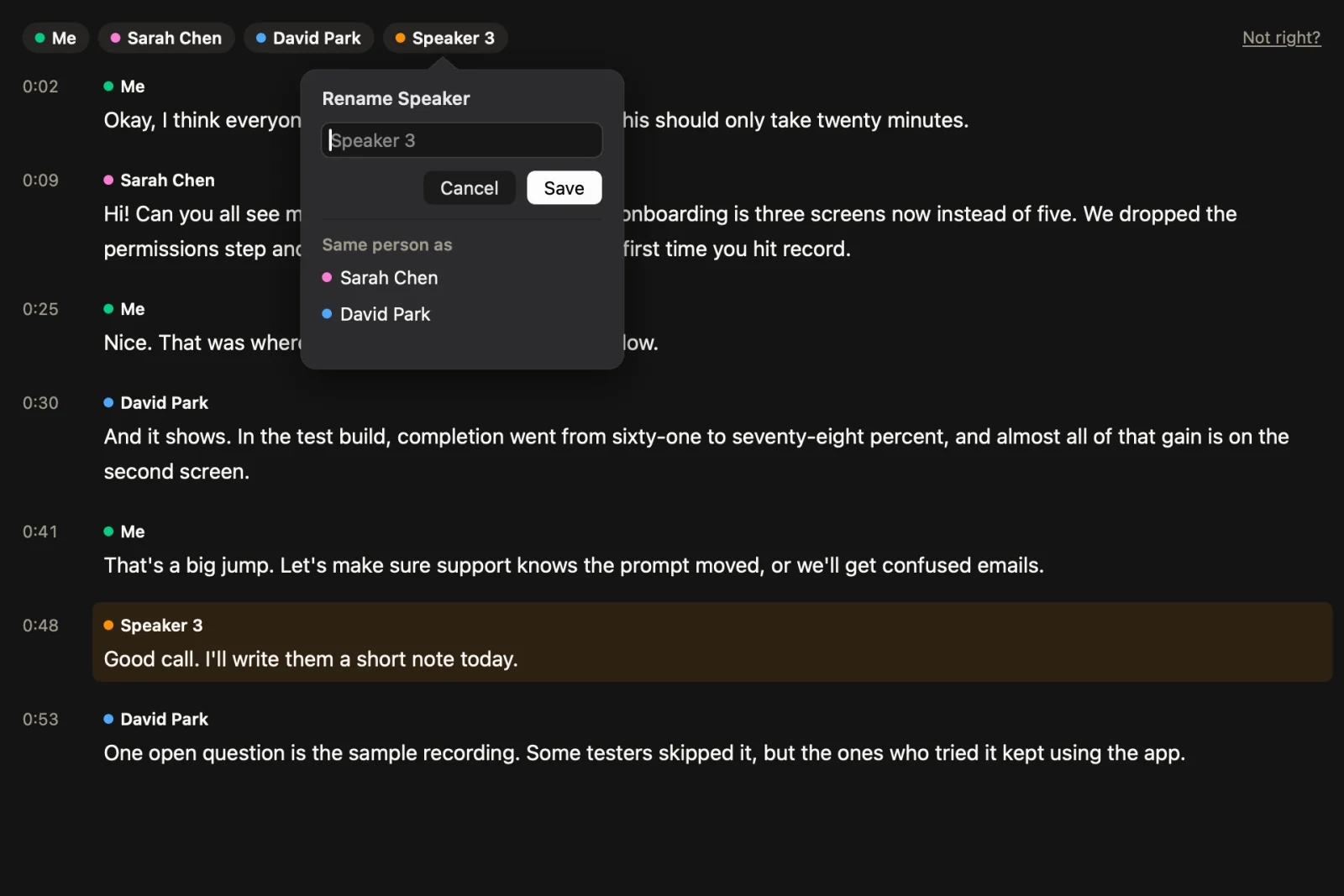
On Mac, type a name, or pick one under Same person as to merge two labels
- One person split into two labels. Give both the same name and they merge. On Mac, the rename box lists them under Same person as.
- A turn under the wrong name. On iPhone, tap the name on that paragraph and pick the right speaker. When a paragraph holds both of you, select the sentences and choose Move sentence to speaker, on either device.
- A change you didn't mean. Undo appears for a few seconds after each rename, merge or move.
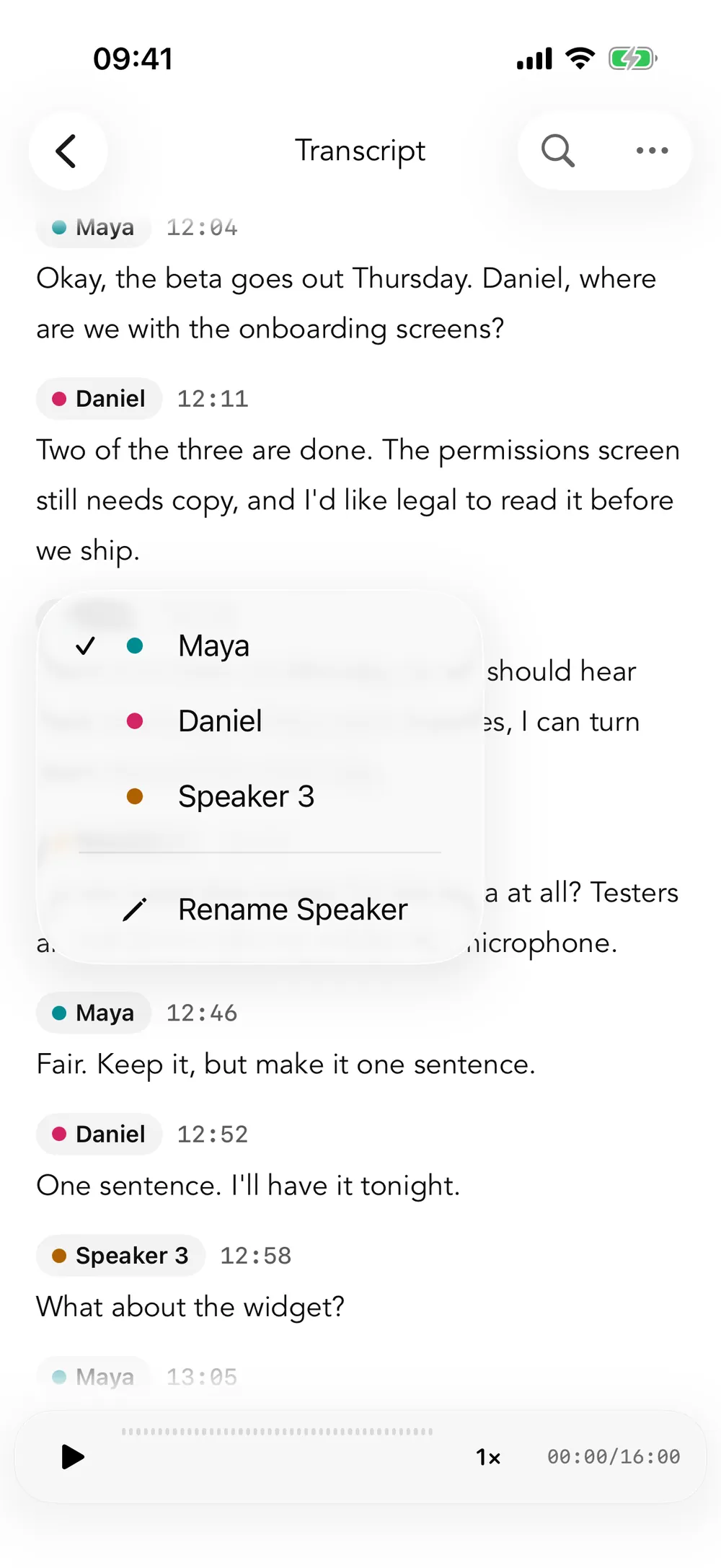
On iPhone, tap the name on a paragraph to move it to the right speaker
What the app does and what stays with you
Your department, supervisor or client sets the transcription rules, most often clean verbatim (fillers and false starts left out) or full verbatim (every word as spoken). How the work splits:
| Rule | Whisper Notes | By hand |
|---|---|---|
| Speaker labels (Interviewer, P1 …) | Labels up to 8 voices; you choose the names | Spot-check who said what |
| Timestamps | Start time of every turn in Markdown, SRT and VTT, and in the iPhone TXT with speakers | Nothing, as long as you export one of those; the Mac TXT has no times |
| Anonymization | Speakers are called only what you name them | Replace names, places and companies mentioned in the conversation |
| Fillers (um, uh) | Remove Filler Words in Settings, for clean verbatim | Leave it off for full verbatim |
| Pauses, laughter, emphasis | Not marked | Add them if your rules ask for them |
Rules are examples from common transcription guides; your institution's rules decide.
Export with names and times
| iPhone | Mac | |
|---|---|---|
| Text file | Export TXT File (Speakers): the recording date, then each turn as [0:55] Name: and its text | Export As → TXT: each turn under its speaker's name, without times |
| Markdown | Each turn as Name · 00:55, under a short header with date, duration and the list of speakers | The same layout |
| SRT and VTT | Every subtitle line with its time and the speaker's name | The same |
All exports use the names you gave the speakers. Copy Transcript with Speakers puts the transcript on the clipboard with times and names.
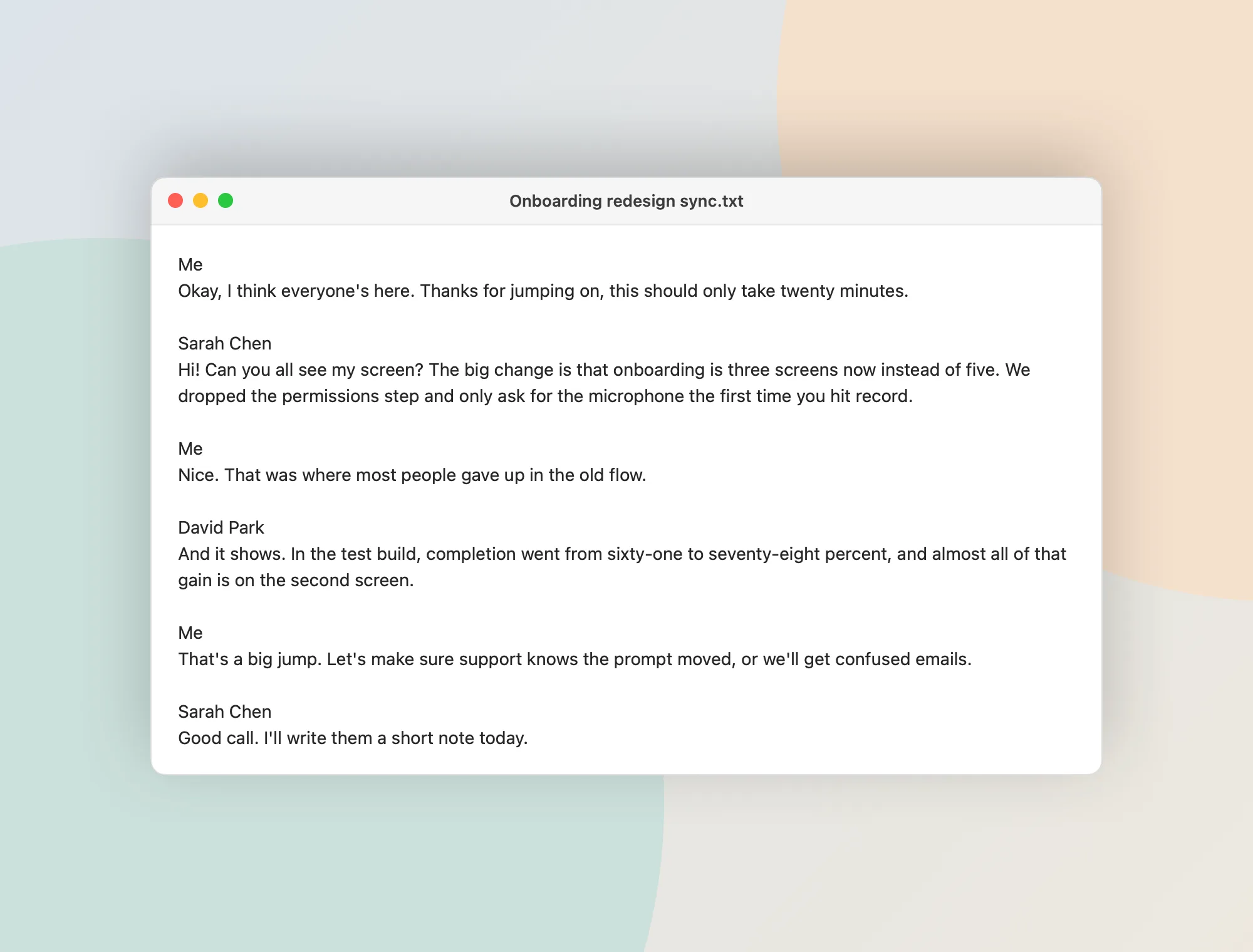
A TXT export from the Mac: one block per turn, under the speaker's name
Click or tap a sentence to play the recording from that moment, which is the quickest way to check a quote against the voice.
Summaries: in the Mac app from our website, the AI assistant summarizes an interview on the Mac and answers questions about it. On iPhone, Summarize needs Apple Intelligence: iOS 26, an iPhone that supports it, and a note of at least 200 characters.
Can ChatGPT transcribe an interview?
Audio you give ChatGPT is processed on OpenAI's servers. If your consent form or ethics approval says the audio stays with the research team, transcribe it on your own device: Whisper Notes transcribes the interview on your iPhone or Mac and labels the speakers there, without uploading the recording.
When another tool fits better
- Windows or Linux, or free and open source. noScribe is built for research interviews, runs locally on Windows, macOS and Linux, separates speakers and comes with an editor for checking the transcript. Choose Whisper Notes when you want to record on an iPhone too, or label and export from the same app you record in.
- A transcript checked by a person. A human transcription service is the right choice; it means sending them the audio. Whisper Notes keeps the audio on your device and leaves the checking to you.
Frequently Asked Questions
Can I transcribe interviews without uploading them to the cloud?
Yes. Whisper Notes transcribes and labels speakers on your iPhone or Mac. Your recordings and transcripts never leave your device, we can't see them, and they are never used to train AI. Once the models are downloaded, transcription and speaker labels need no internet.
What is a free way to transcribe interviews?
On a Mac, the Mac app from our website is free for 5,000 words a week, which is less than an hour of conversation, then $14 once. noScribe is free and open source and runs on Windows, macOS and Linux. On iPhone, Whisper Notes is $7.99 once, with no subscription.
How many speakers can Whisper Notes tell apart?
Up to 8. It counts them by itself, and you can set the number when you run it again: 1 to 8 on iPhone, 2 to 8 on Mac. For a call recorded with Start Meeting Recording on a Mac, your side is labeled Me and the number counts only the other side. Running it again resets the names you gave. Results on public recordings are in Whisper Notes Now Identifies Speakers.
Can I record a phone interview with Whisper Notes?
Not on iPhone: a phone call pauses the recording. On a Mac, Start Meeting Recording records a call you take in a Mac app such as Zoom, Teams or Google Meet, both sides at once (how it works).
 Download for iOS